
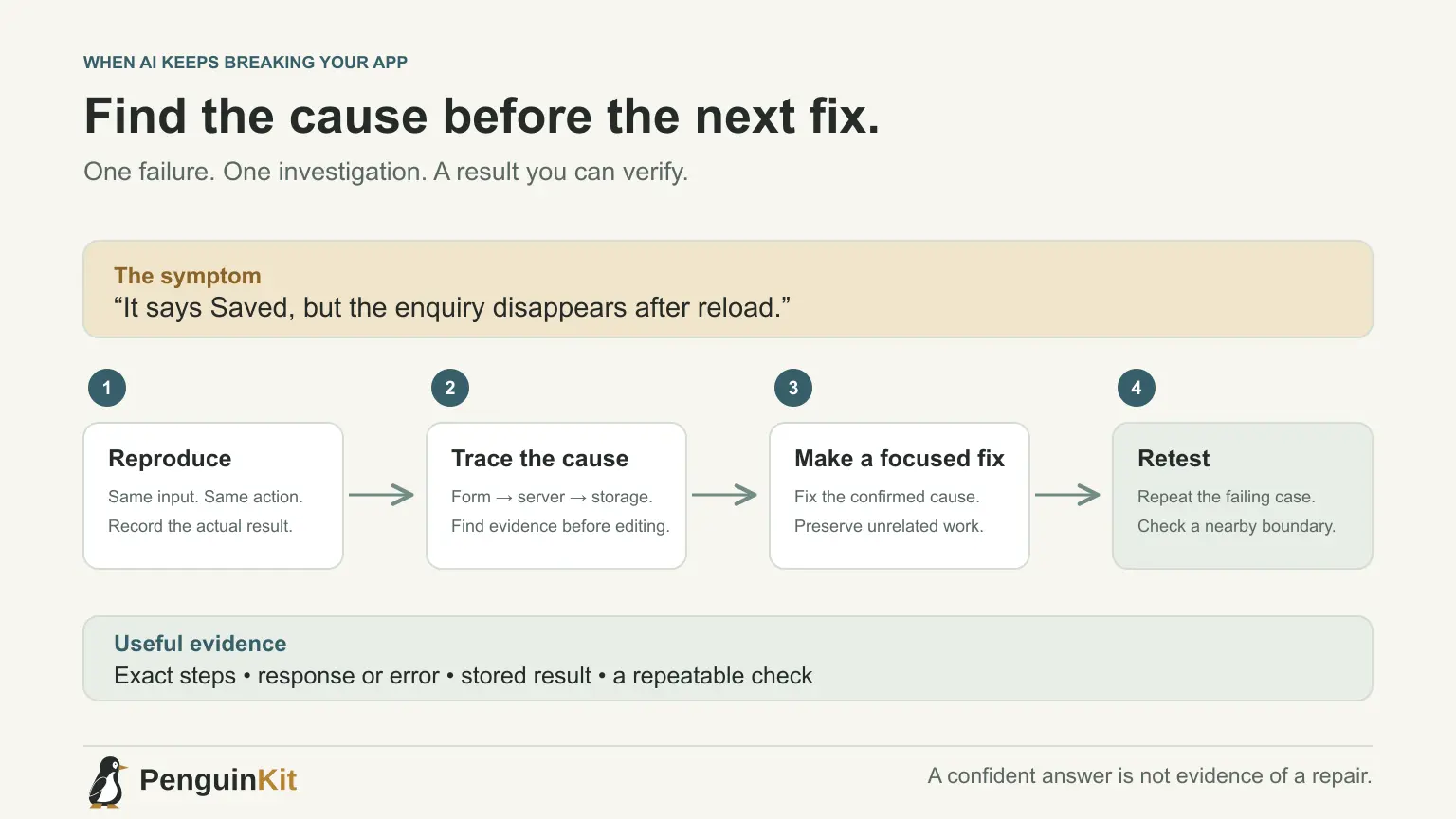
If your AI coding agent keeps breaking your app, stop asking it to fix everything at once. Identify one failure, reproduce it and trace the cause before making another broad change. Repeated patches can make the interface look different while leaving the original defect untouched.
This guide is for builders who see the same bug return or find that fixing one feature breaks another. You do not need to diagnose every technical detail yourself. You do need a clear account of what happened and a recoverable starting point.
Describe the failure as a user action
“The app is broken” is difficult to investigate. “I click Save on a valid enquiry, the screen says Saved, but the entry disappears after reload” provides a sequence with an expected result.
Record the screen, input, action, actual result and expected result. State whether the problem happens every time or only under a condition such as a fresh login or interrupted network connection.
Use fictional data when sharing a reproduction. An error screenshot can contain private information, so review it before sending it to a tool or support channel.
Save the current state before another repair
Check which files have changed and preserve a recoverable checkpoint. Do not blindly discard uncommitted work, reset a shared database or reinstall the project because the agent suggests a clean start.
If you have an earlier working version, compare it with the failing version. Identify the relevant difference rather than asking the agent to rebuild the whole app from memory.
A source-code checkpoint does not automatically back up a database, uploaded files or external settings. If a proposed fix touches those, discuss how the affected data can be preserved and recovered.
Separate the symptom from possible causes
Consider the disappearing enquiry example. The interface might be displaying a locally added item without saving it. The server might reject the request. Storage may be misconfigured. Or the reload might fetch the wrong user's list.
These are hypotheses, not diagnoses. Ask the tool to inspect the relevant path and find evidence:
Reproduce this saved-enquiry failure. Trace the request from the form
to the server and storage, then inspect the reload path.
Identify the demonstrated cause before editing. Keep existing work intact.
Do not suppress the error or report success for a rejected save.
Useful evidence can include a response status, a relevant server error or a storage result. Ask for the smallest diagnostic detail that answers the question, with secrets and customer content removed.
Fix one cause with one completion rule
When the cause is established, agree on the correction and what proves it works. For this example, a valid enquiry should be saved once, appear after reload and remain visible only to the appropriate account where accounts are part of the app.
If the save fails, the interface should retain the user's input and show an honest, useful message. It should not create a success notification simply because the button was clicked.
Ask the builder to preserve the existing architecture unless the evidence shows it cannot support the required behaviour. A fresh framework or extra service is not a default debugging step.
Add a check that catches this failure again
Choose a test that exercises the actual defect. A test that only confirms the button exists will not catch a disappearing record.
For the enquiry example:
| Case | Observable result |
|---|---|
| Valid save followed by reload | The entry remains |
| Rejected save | No false success; input remains available |
| Repeated submission | Behaviour follows the intended duplication rule |
| Another account, if applicable | Private entries are not exposed |
Use realistic test infrastructure for the boundary you are checking. A fake storage response cannot establish that a real database accepts the record. Label any provider-dependent checks separately.
Review what changed beyond the fix
Ask for the changed files and a brief reason for each. Look for unrelated edits: a redesigned dashboard, renamed routes or new dependencies may make the repair harder to assess.
Run the relevant regression checks. If saving an enquiry shares infrastructure with editing it, check editing too. Broaden testing to address a concrete risk, not merely to produce a longer success report.
The first-milestone testing guide explains how to use known inputs and boundary cases without creating a huge test programme for a small tool.
Reset confused context without losing the investigation
If the conversation has accumulated several abandoned fixes, write a short handoff: the reproduction, confirmed cause, current changes, checks that passed and the next unresolved issue. Start a focused session using that note and the actual code if necessary.
Do not preserve incorrect assumptions as current requirements. The context-management guide describes how to distinguish decisions from old suggestions.
Return to a checkable build sequence
After the repair, save the working result and resume one useful milestone at a time. If the overall direction is unclear, prepare a project foundation with PenguinKit before expanding the app.
AI can help investigate and implement a correction, but a confident explanation is not the same as a verified result. The useful outcome is a specific failure that no longer occurs, supported by a check you can repeat.
Give your idea a clear starting point.
Bring an idea or an existing brief. PenguinKit helps you shape a project foundation you can review, refine and build from.
Start your project